> ## Documentation Index
> Fetch the complete documentation index at: https://gcore-doc-1046.mintlify.site/llms.txt
> Use this file to discover all available pages before exploring further.
# Manage containers
After [creating the container](/cloud/caas/create-a-container), you can view and update its configuration in the Customer Portal on the [Containers](https://portal.gcore.com/cloud/project/510960/region/80/caas/containers) page:
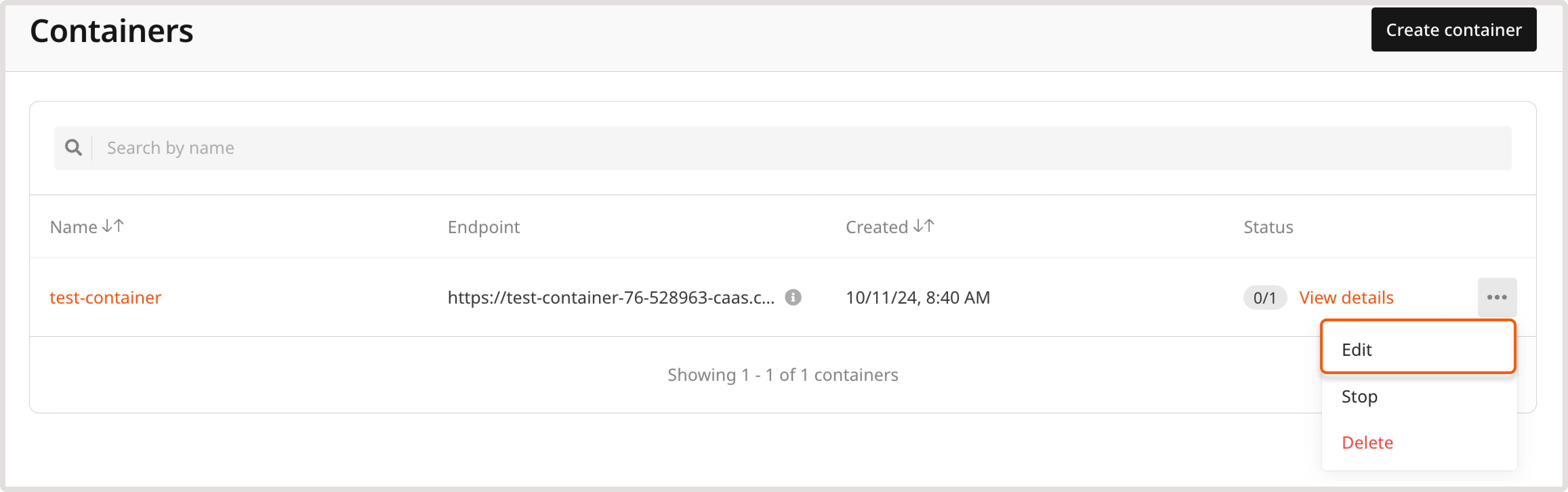
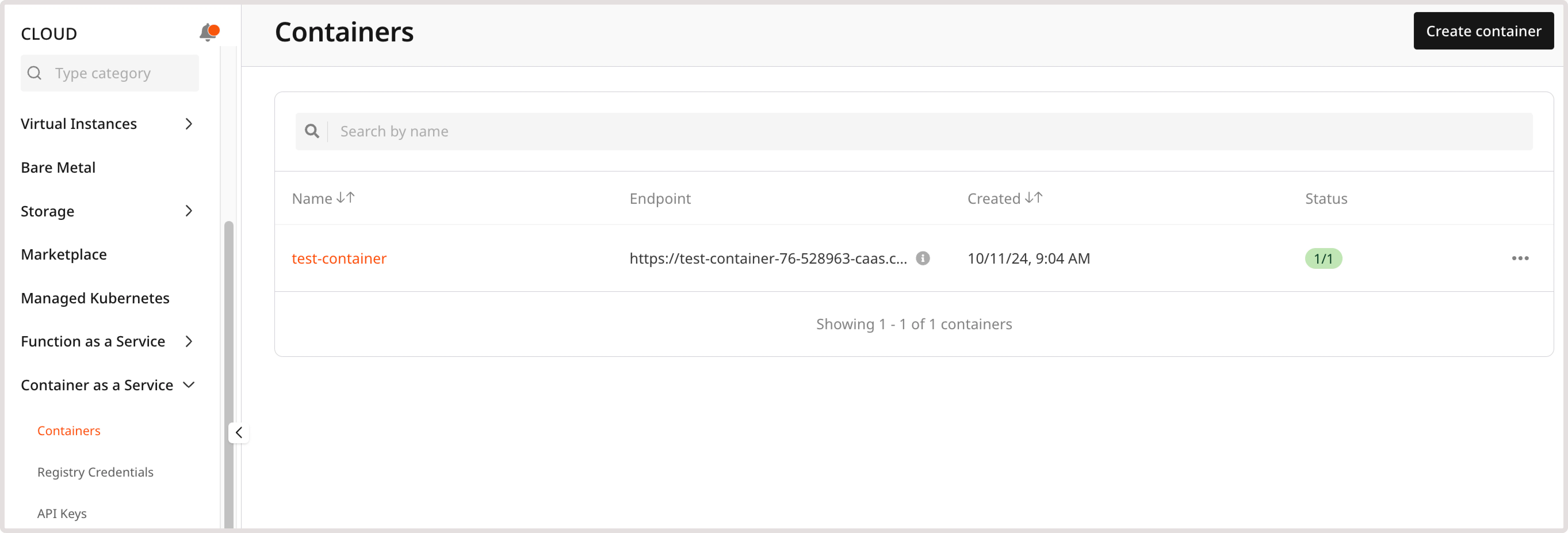 Click a container name to open its settings. Alternatively, click the three dot-icon next to it and then select **Edit**.
 ## Container statuses
A container can have the following statuses:
* **Deploying** : The initial setup was successful, and the container works appropriately.
* **Pending** : The required resources have been successfully created, but the container hasn't been scheduled to a node yet.
* **Ready** : The container is up and running.
* **Disabled** : You manually disabled the container in settings.
* **Error** : There were issues with the image of your container in its initial configuration and as a result, the container didn't work.
## Container settings
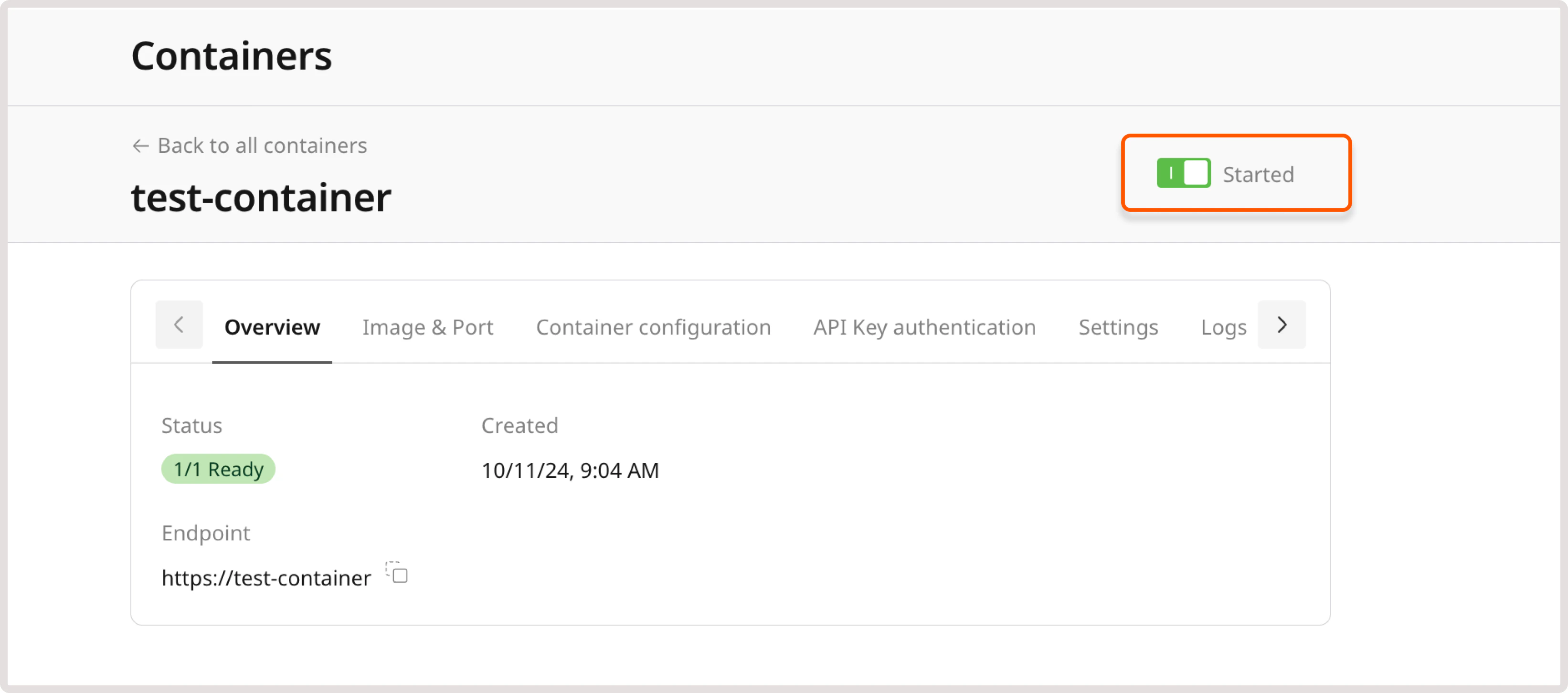
To start or stop the container, open the container settings and disable or enable the **Started** toggle accordingly:
## Container statuses
A container can have the following statuses:
* **Deploying** : The initial setup was successful, and the container works appropriately.
* **Pending** : The required resources have been successfully created, but the container hasn't been scheduled to a node yet.
* **Ready** : The container is up and running.
* **Disabled** : You manually disabled the container in settings.
* **Error** : There were issues with the image of your container in its initial configuration and as a result, the container didn't work.
## Container settings
To start or stop the container, open the container settings and disable or enable the **Started** toggle accordingly:
 ### Overview
The **Overview** tab in container settings features the following details: container status, endpoint, description (if you added one during creation), and date of creation. After you create a container, you can't change this information.
### Image & port
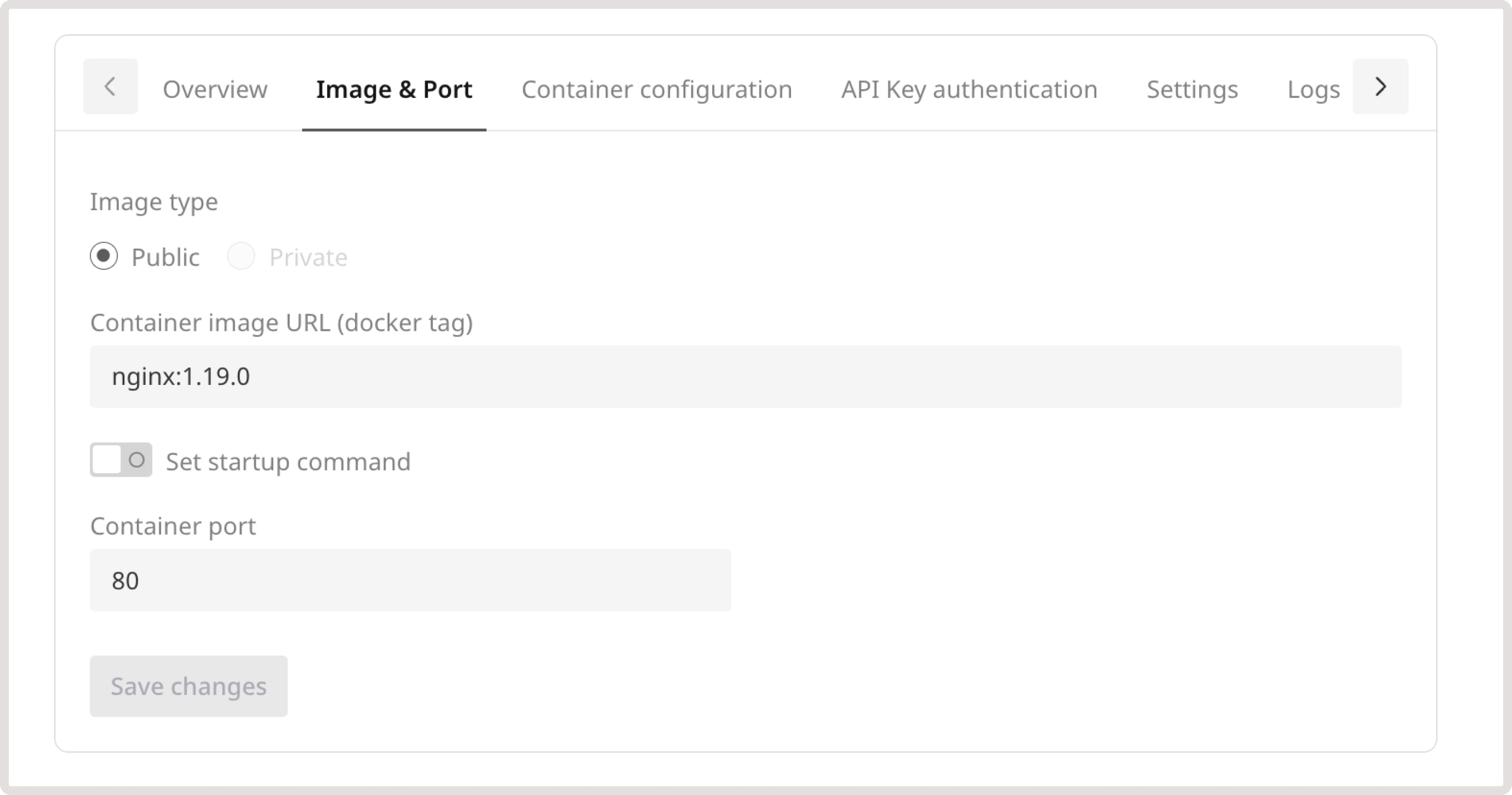
On the **Image & Port** tab, you can add a container startup command, as well as update port and protocol used to connect to the container. You can change these settings at any time.
### Overview
The **Overview** tab in container settings features the following details: container status, endpoint, description (if you added one during creation), and date of creation. After you create a container, you can't change this information.
### Image & port
On the **Image & Port** tab, you can add a container startup command, as well as update port and protocol used to connect to the container. You can change these settings at any time.
 ### Container configuration
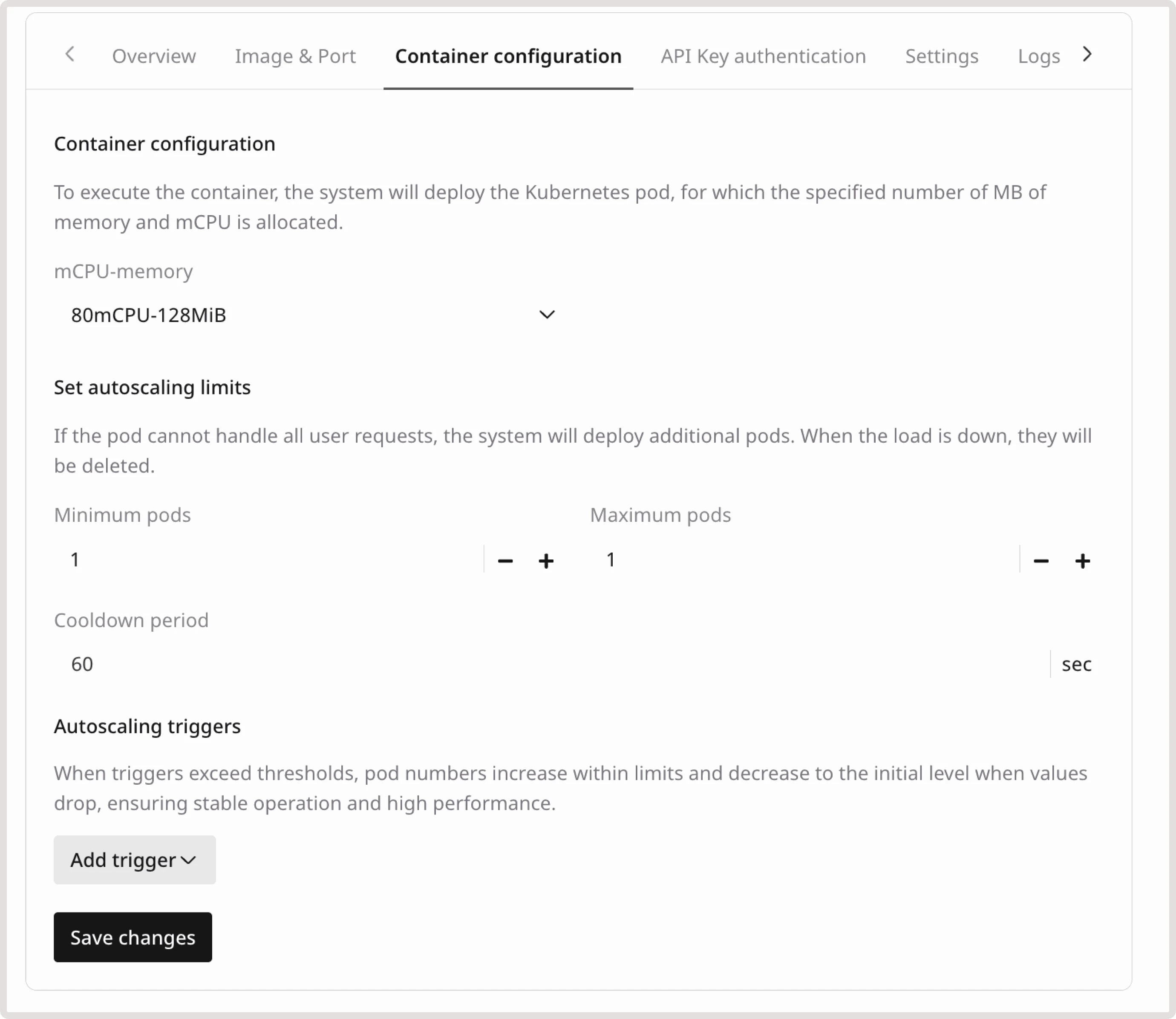
View and adjust the number of MiB of memory, allocated mCPU, as well as autoscaling limits and triggers. For a detailed overview of these settings, check out the the relevant steps in the [Create a container](/cloud/caas/create-a-container#step-4-configure-autoscaling) guide.
### Container configuration
View and adjust the number of MiB of memory, allocated mCPU, as well as autoscaling limits and triggers. For a detailed overview of these settings, check out the the relevant steps in the [Create a container](/cloud/caas/create-a-container#step-4-configure-autoscaling) guide.
 ### API key authentication
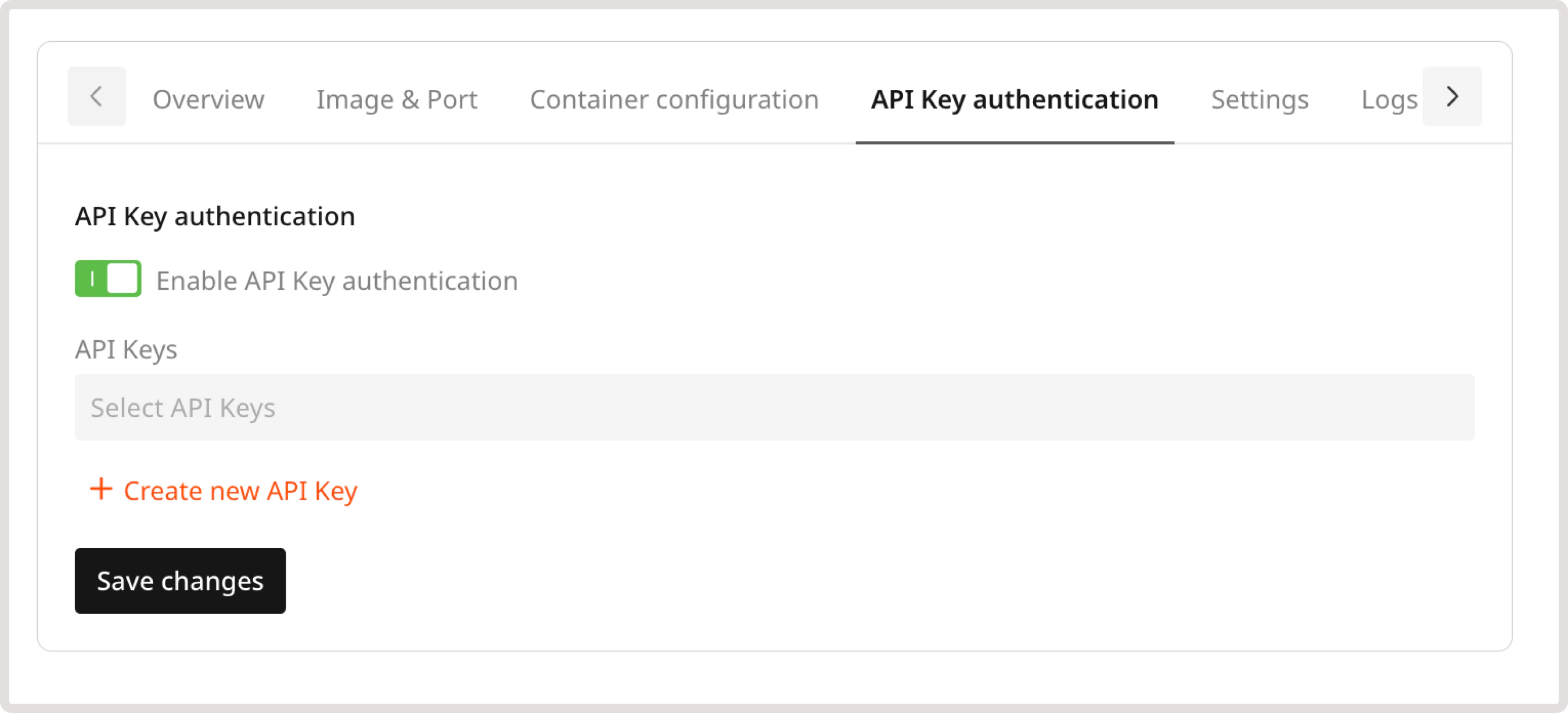
If you want to configure authentication to the container via API or update your API keys, you can do so on this tab.
Turn on the **Enable API Key authentication** toggle and then add or update keys as needed.
### API key authentication
If you want to configure authentication to the container via API or update your API keys, you can do so on this tab.
Turn on the **Enable API Key authentication** toggle and then add or update keys as needed.
 ### Settings
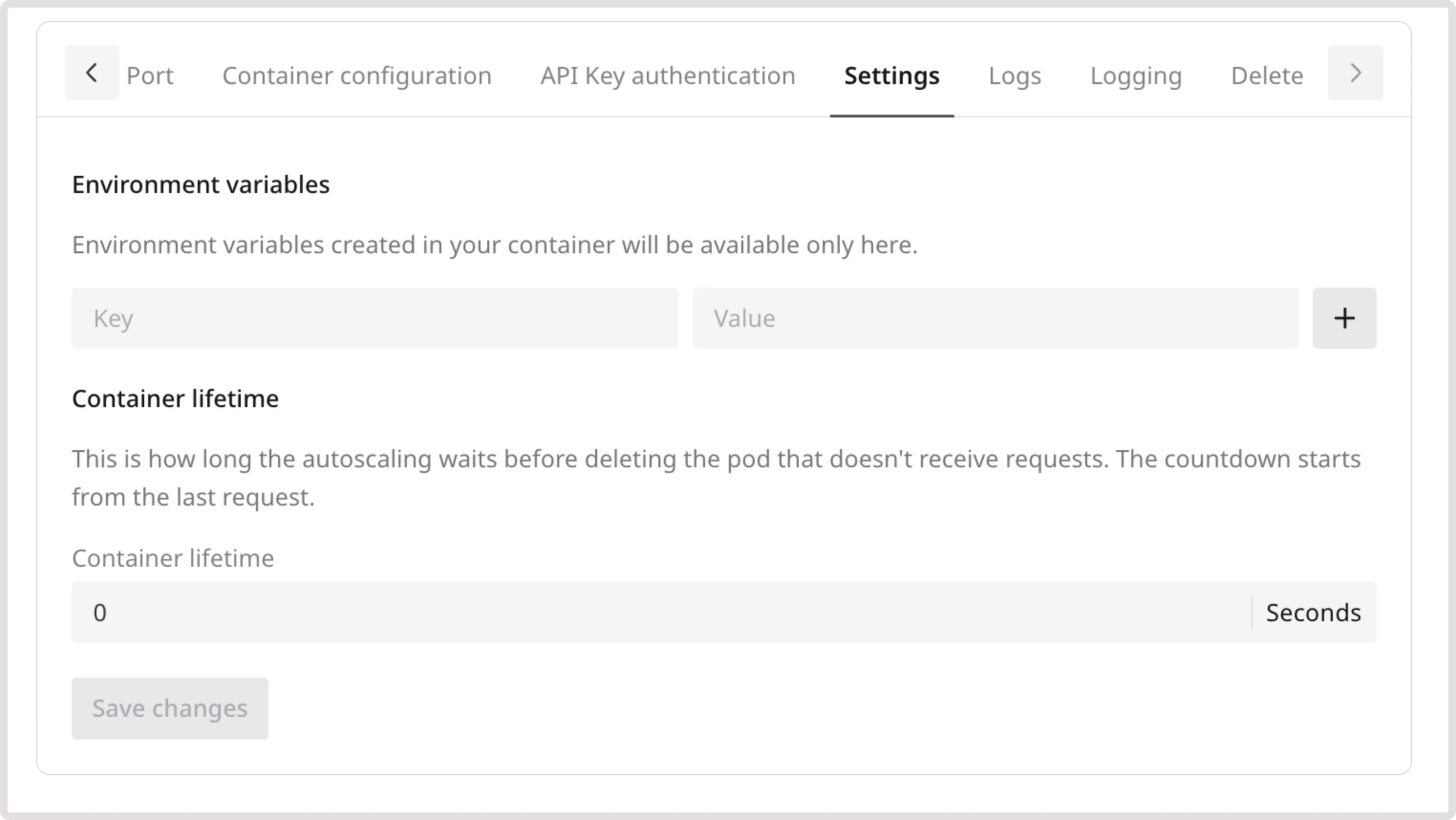
The **Settings** tab lets you configure [environment variables](/cloud/caas/create-a-container#step-6-optional-add-environment-variables) and set the duration the container will continue running without receiving any requests before it's automatically deleted.
### Settings
The **Settings** tab lets you configure [environment variables](/cloud/caas/create-a-container#step-6-optional-add-environment-variables) and set the duration the container will continue running without receiving any requests before it's automatically deleted.
 ## Logs
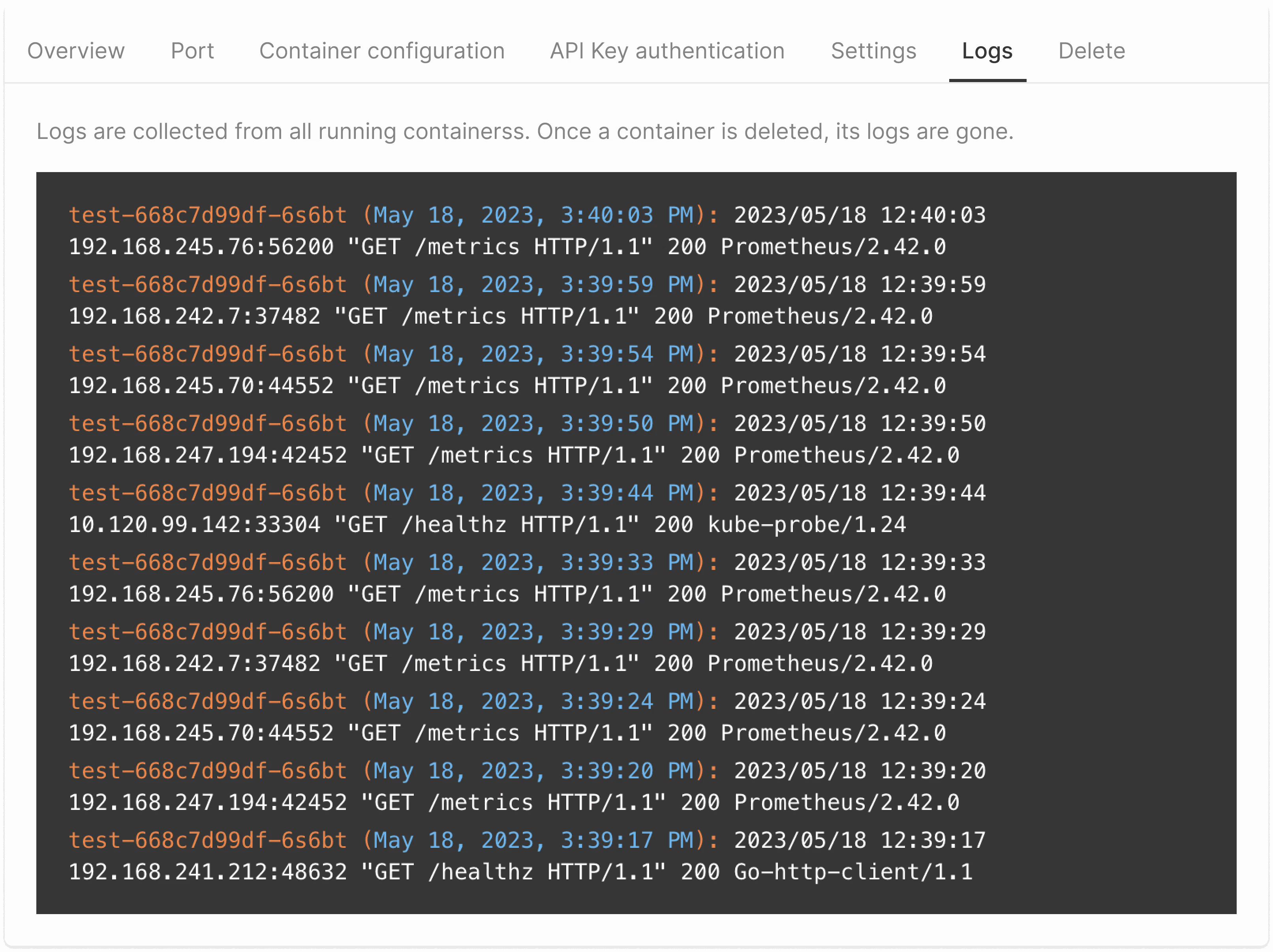
View the aggregated log data about requests to all running containers. Note that when you delete a container, logs are also deleted.
Logs entities are shown in the following format:
```
Container name_Date_Date
IP_Method_Endpoint_HTTP type_ Resonse code_Monitoring technology name
```
## Logs
View the aggregated log data about requests to all running containers. Note that when you delete a container, logs are also deleted.
Logs entities are shown in the following format:
```
Container name_Date_Date
IP_Method_Endpoint_HTTP type_ Resonse code_Monitoring technology name
```
 ### Logging
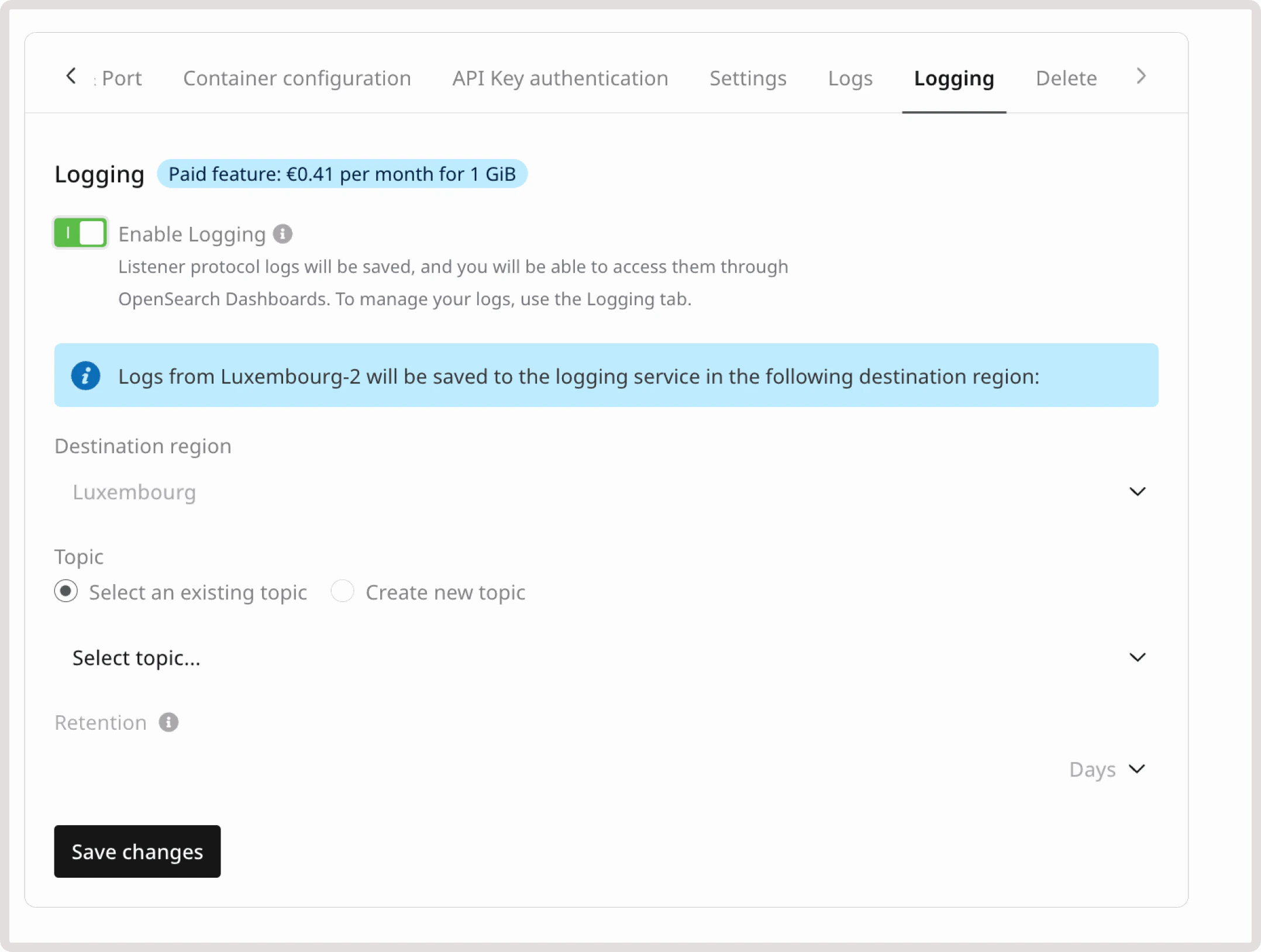
Activate the Logging service to store your logs. To learn how it works and how to configure it, refer to the article about [Logging](/cloud/logging-as-a-service/about-logging-as-a-service).
### Logging
Activate the Logging service to store your logs. To learn how it works and how to configure it, refer to the article about [Logging](/cloud/logging-as-a-service/about-logging-as-a-service).
 ### Delete
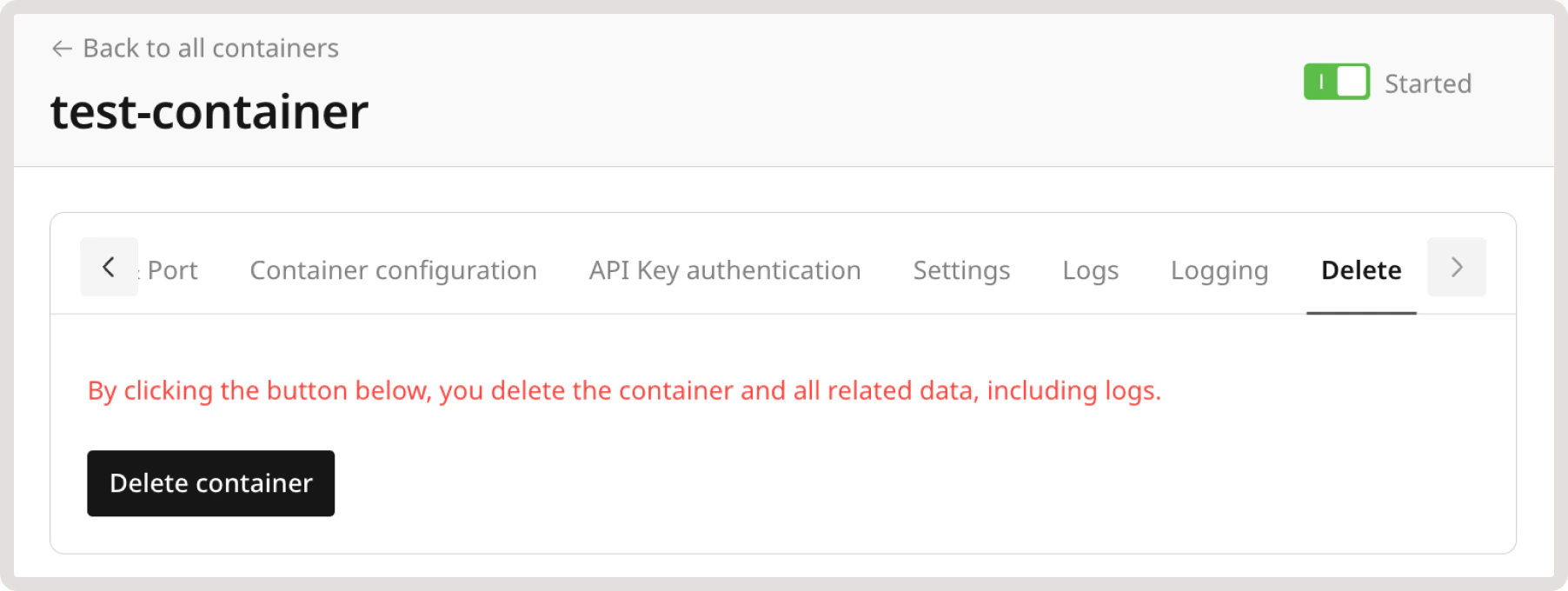
If you no longer need the container, click the **Delete container** button and then confirm your action by typing **Delete**.
Both the container and its logs will be permanently removed.
### Delete
If you no longer need the container, click the **Delete container** button and then confirm your action by typing **Delete**.
Both the container and its logs will be permanently removed.