> ## Documentation Index
> Fetch the complete documentation index at: https://gcore-doc-1046.mintlify.site/llms.txt
> Use this file to discover all available pages before exploring further.
# Manage FastEdge apps
You can view and manage your HTTP and CDN applications on the application management page:
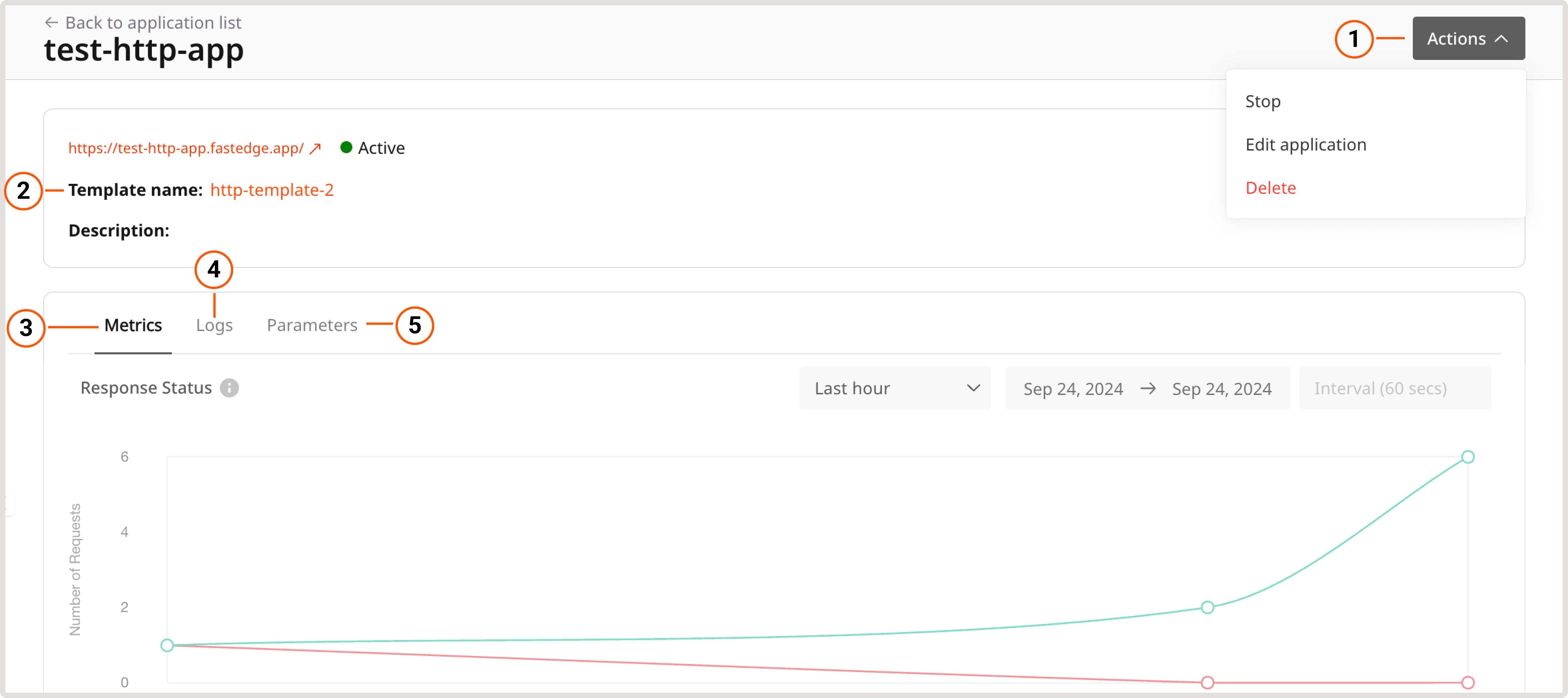 * **Actions**: Perform quick actions, such as stopping or starting an application, editing its configuration, or deleting the application from the Customer Portal.
* **Template name**: If the application was created from a template, view the template and its configuration
* **Metrics**: Check response statuses for requests to the FastEdge servers and analyze runtime duration data.
* **Logs**: View and enable application logs.
* **Response Headers**: Headers added to every response.
* **Environment Variables**: Update or add environment variables.
* **Secrets**: Update or add secrets (encrypted environment variables).
* **Edge Storage**: Update or add Edge Storage (key-value storage).
To open the application management page:
1\. In the [Gcore Customer Portal](https://portal.gcore.com/accounts/reports/dashboard), navigate to **FastEdge** and choose the relevant page: **HTTP Applications** or **CDN Applications**.
2\. On the **Applications** page, click the three-dot icon next to the application you want to configure.
3\. Select **Manage**.
* **Actions**: Perform quick actions, such as stopping or starting an application, editing its configuration, or deleting the application from the Customer Portal.
* **Template name**: If the application was created from a template, view the template and its configuration
* **Metrics**: Check response statuses for requests to the FastEdge servers and analyze runtime duration data.
* **Logs**: View and enable application logs.
* **Response Headers**: Headers added to every response.
* **Environment Variables**: Update or add environment variables.
* **Secrets**: Update or add secrets (encrypted environment variables).
* **Edge Storage**: Update or add Edge Storage (key-value storage).
To open the application management page:
1\. In the [Gcore Customer Portal](https://portal.gcore.com/accounts/reports/dashboard), navigate to **FastEdge** and choose the relevant page: **HTTP Applications** or **CDN Applications**.
2\. On the **Applications** page, click the three-dot icon next to the application you want to configure.
3\. Select **Manage**.
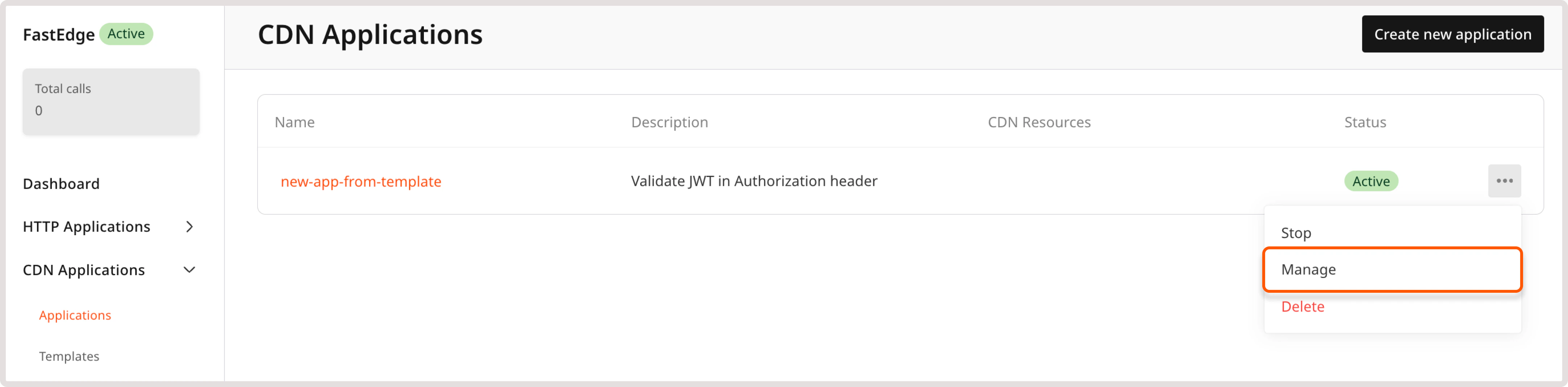 4\. Check and update your application's configuration as required.
## Stop or start an application
You can change the running state of your application and decide if you want to have it running and processing requests, or stopped. The latter might be useful if you need to update the application's configuration or want to upload a new version of the application's binary file.
An application can be stopped for the following reasons:
* You manually stopped it, as described in the following instructions. You can restart the application at any time.
* Payment for the product was unsuccessful. In this case, the application cannot be reactivated until payment is completed.
To manually stop or activate the application:
1\. In the [Gcore Customer Portal](https://portal.gcore.com/accounts/reports/dashboard), navigate to **FastEdge** and choose the relevant page: **HTTP Applications** or **CDN Applications**.
2\. On the **Applications** page, click the three-dot icon next to the application you want to configure.
3\. Select **Manage**.
4\. Click **Actions** and choose the relevant one: **Stop** or **Start**.
4\. Check and update your application's configuration as required.
## Stop or start an application
You can change the running state of your application and decide if you want to have it running and processing requests, or stopped. The latter might be useful if you need to update the application's configuration or want to upload a new version of the application's binary file.
An application can be stopped for the following reasons:
* You manually stopped it, as described in the following instructions. You can restart the application at any time.
* Payment for the product was unsuccessful. In this case, the application cannot be reactivated until payment is completed.
To manually stop or activate the application:
1\. In the [Gcore Customer Portal](https://portal.gcore.com/accounts/reports/dashboard), navigate to **FastEdge** and choose the relevant page: **HTTP Applications** or **CDN Applications**.
2\. On the **Applications** page, click the three-dot icon next to the application you want to configure.
3\. Select **Manage**.
4\. Click **Actions** and choose the relevant one: **Stop** or **Start**.
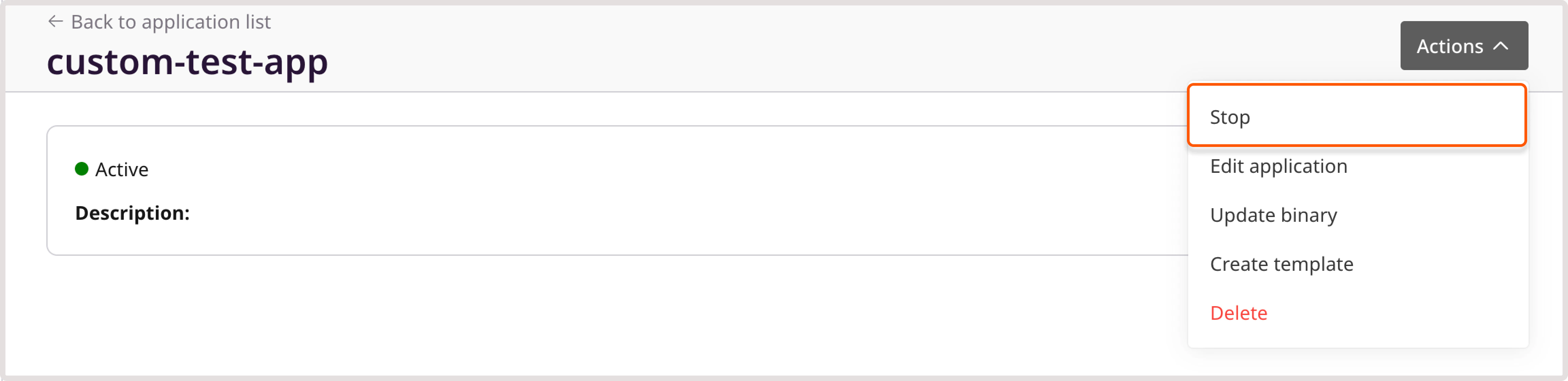 The application status will be changed respectively.
## View and enable logging
If you want to record logs for your FastEdge application, make sure that you have the **Enable logging** toggle enabled.
The application status will be changed respectively.
## View and enable logging
If you want to record logs for your FastEdge application, make sure that you have the **Enable logging** toggle enabled.
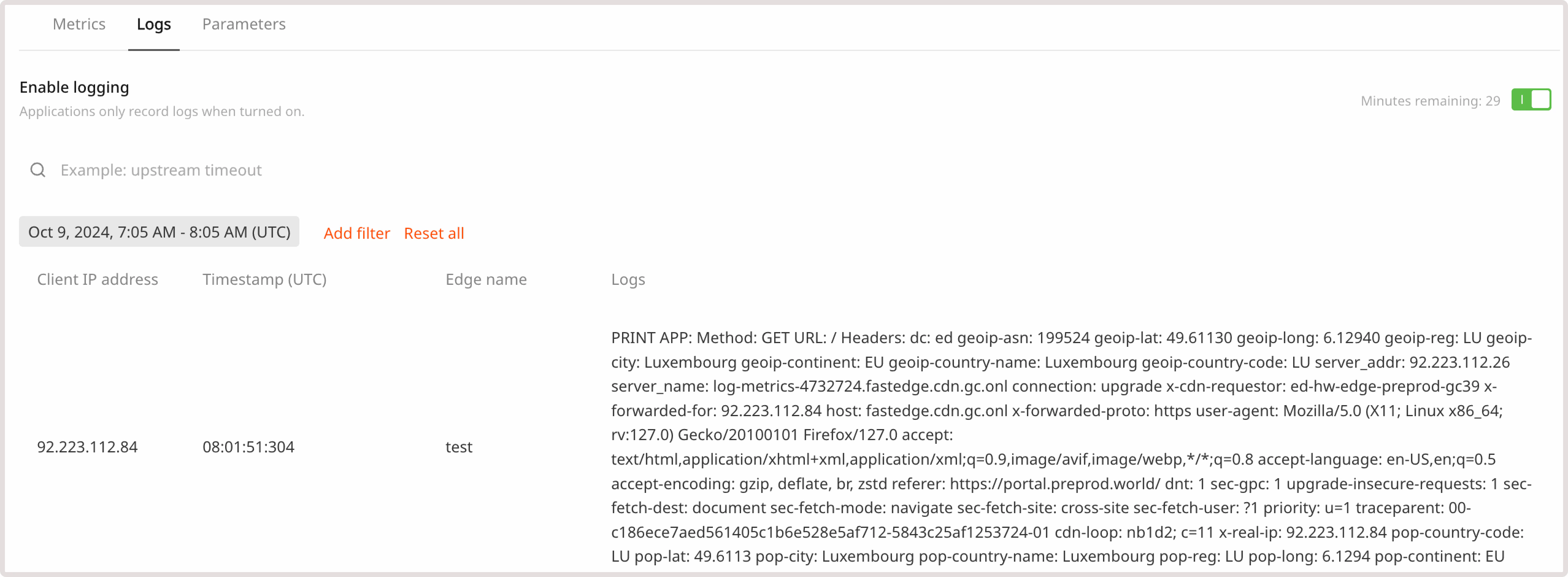 By default, FastEdge applications don't generate logs. After you turn on the Enable logging toggle, the application will record logs for 30 minutes. You can monitor the remaining logging time by checking the countdown next to the toggle.
After 30 minutes, logging will stop, and the application will revert to its default no-logging state. To start logging, enable the toggle again.
You can filter log data according to the following criteria:
* **Timestamp**. Choose the date and time when the logs have been recorded. By default, the table displays data for the past hour.
* **Client IP address**. View logs collected for a particular IP.
* **Edge name**. Search within the **Logs** column.
## Response Headers
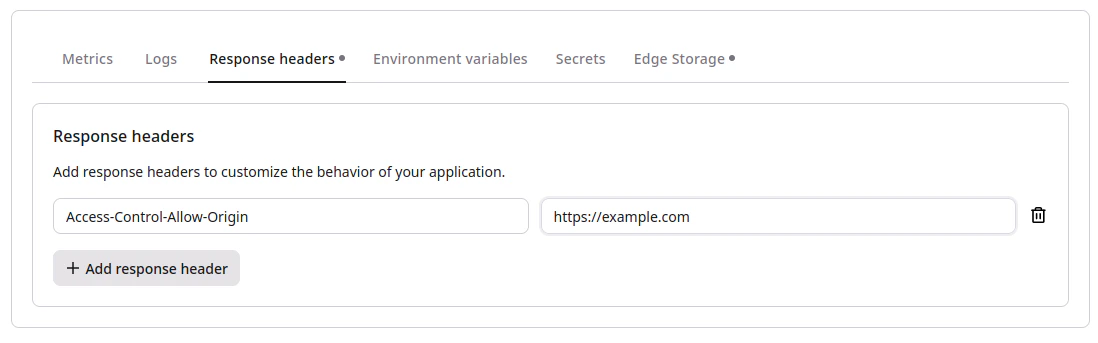
On the **Response Headers** tab, you can update or enhance the functionality of your application by adding or modifying HTTP response headers.
These Response Headers will be added to every response. For example, you may include CORS (cross-origin resource sharing) headers in each response to ensure secure communication between origins.
By default, FastEdge applications don't generate logs. After you turn on the Enable logging toggle, the application will record logs for 30 minutes. You can monitor the remaining logging time by checking the countdown next to the toggle.
After 30 minutes, logging will stop, and the application will revert to its default no-logging state. To start logging, enable the toggle again.
You can filter log data according to the following criteria:
* **Timestamp**. Choose the date and time when the logs have been recorded. By default, the table displays data for the past hour.
* **Client IP address**. View logs collected for a particular IP.
* **Edge name**. Search within the **Logs** column.
## Response Headers
On the **Response Headers** tab, you can update or enhance the functionality of your application by adding or modifying HTTP response headers.
These Response Headers will be added to every response. For example, you may include CORS (cross-origin resource sharing) headers in each response to ensure secure communication between origins.
 ## Environment Variables
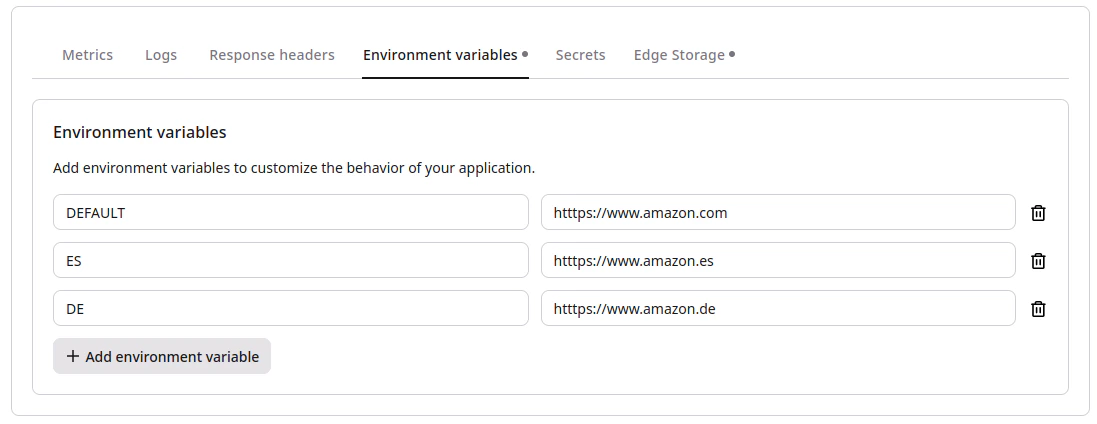
On the **Environment Variables** tab, you can update or enhance the functionality of your application by adding or modifying environment variables.
For example, the following screenshots illustrate the configuration for a geo-location application. Environment variables are set based on the geo-IP of the client making the request. With this configuration, users will view different versions of a website based on their location.
## Environment Variables
On the **Environment Variables** tab, you can update or enhance the functionality of your application by adding or modifying environment variables.
For example, the following screenshots illustrate the configuration for a geo-location application. Environment variables are set based on the geo-IP of the client making the request. With this configuration, users will view different versions of a website based on their location.
 **Info**
By using our [FastEdge SDK Javascript](https://g-core.github.io/FastEdge-sdk-js/reference/fastedge/env/) or [FastEdge SDK Rust](https://docs.rs/fastedge/latest/fastedge/dictionary/fn.get.html), you can configure these variables according to your use cases.
## Secrets
On the **Secrets** tab, you can update or enhance the functionality of your application by adding or modifying secrets.
**Info**
By using our [FastEdge SDK Javascript](https://g-core.github.io/FastEdge-sdk-js/reference/fastedge/env/) or [FastEdge SDK Rust](https://docs.rs/fastedge/latest/fastedge/dictionary/fn.get.html), you can configure these variables according to your use cases.
## Secrets
On the **Secrets** tab, you can update or enhance the functionality of your application by adding or modifying secrets.
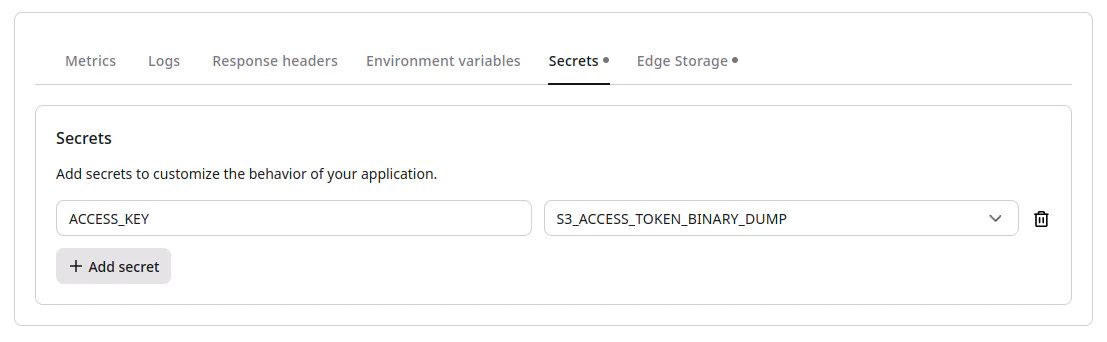 Providing a secret to your application:
You define a name for the secret within the application and then select a secret from [Secrets Manager](/fastedge/secrets-manager/manage-secrets), linking it to the application.
* **ACCESS\_KEY** - name as defined in the application.
* **S3\_ACCESS\_TOKEN\_BINARY\_DUMP** - secret that is linked to the application.
To access the secret within the application, use secret::get("ACCESS\_KEY"), where ACCESS\_KEY is the secret name defined in the application.
**Info**
By using our [Javascript SDK](https://g-core.github.io/FastEdge-sdk-js/reference/fastedge/secret/get-secret/) or [Rust SDK](https://docs.rs/fastedge/latest/fastedge/secret/index.html), you can configure these secrets according to your use cases.
## Edge Storage
On the **Edge Storage** tab, you can update or enhance the functionality of your application by adding or modifying edge storage.
Providing a secret to your application:
You define a name for the secret within the application and then select a secret from [Secrets Manager](/fastedge/secrets-manager/manage-secrets), linking it to the application.
* **ACCESS\_KEY** - name as defined in the application.
* **S3\_ACCESS\_TOKEN\_BINARY\_DUMP** - secret that is linked to the application.
To access the secret within the application, use secret::get("ACCESS\_KEY"), where ACCESS\_KEY is the secret name defined in the application.
**Info**
By using our [Javascript SDK](https://g-core.github.io/FastEdge-sdk-js/reference/fastedge/secret/get-secret/) or [Rust SDK](https://docs.rs/fastedge/latest/fastedge/secret/index.html), you can configure these secrets according to your use cases.
## Edge Storage
On the **Edge Storage** tab, you can update or enhance the functionality of your application by adding or modifying edge storage.
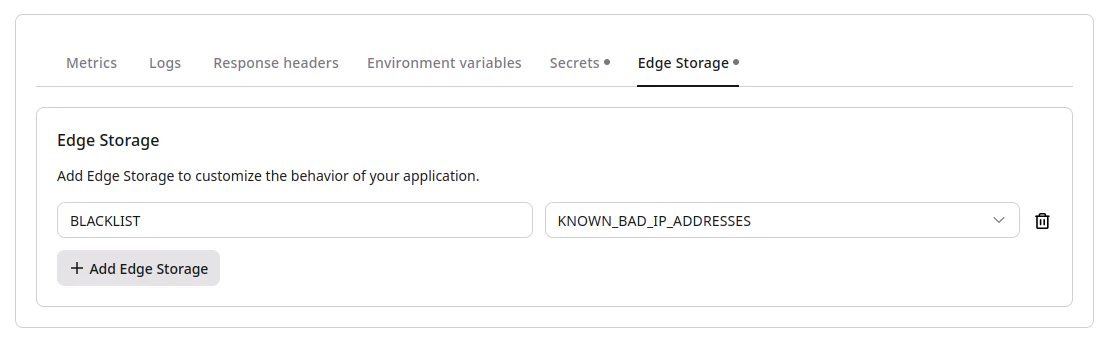 Providing Edge Storage to your application:
You define a name for the store within the application and then select an edge store from [Edge Storage](/fastedge/kv-stores/manage-kv-store), linking it to the application.
* **BLACKLIST** - name as defined in the application.
* **KNOWN\_BAD\_IP\_ADDRESSES** - storage that is linked to the application.
To access the storage within the application you would use `Store::open("BLACKLIST")` as this is the name as defined within the application.
**Info**
By using our [Javascript SDK](https://g-core.github.io/FastEdge-sdk-js/reference/fastedge/kv/open/) or [Rust SDK](https://docs.rs/fastedge/latest/fastedge/key_value/struct.Store.html), you can configure the Edge Storage according to your use cases.
Providing Edge Storage to your application:
You define a name for the store within the application and then select an edge store from [Edge Storage](/fastedge/kv-stores/manage-kv-store), linking it to the application.
* **BLACKLIST** - name as defined in the application.
* **KNOWN\_BAD\_IP\_ADDRESSES** - storage that is linked to the application.
To access the storage within the application you would use `Store::open("BLACKLIST")` as this is the name as defined within the application.
**Info**
By using our [Javascript SDK](https://g-core.github.io/FastEdge-sdk-js/reference/fastedge/kv/open/) or [Rust SDK](https://docs.rs/fastedge/latest/fastedge/key_value/struct.Store.html), you can configure the Edge Storage according to your use cases.