

Browse the catalog
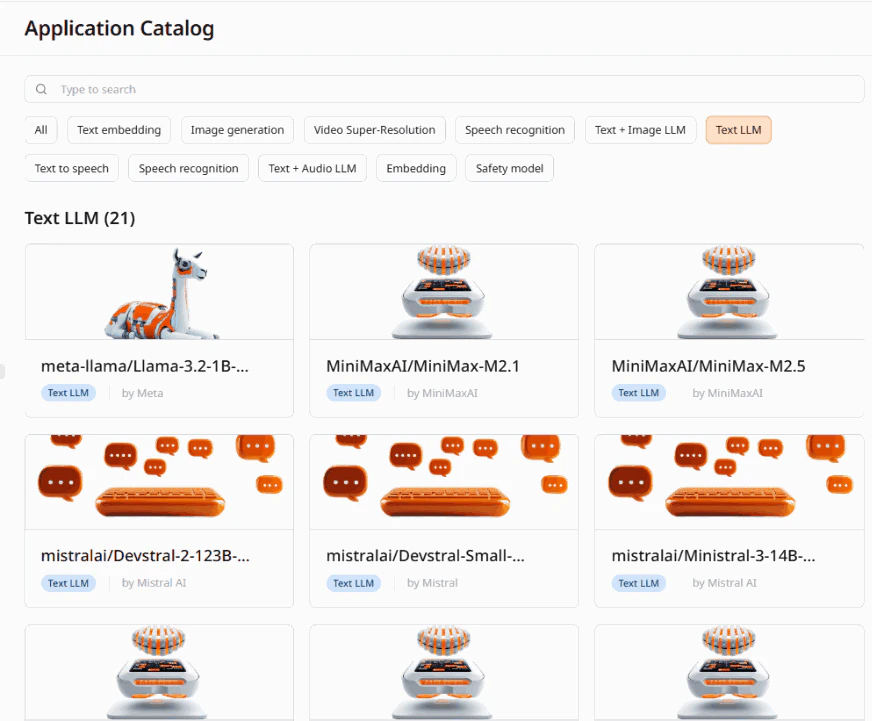
1. In the Gcore Customer Portal, navigate to Everywhere Inference > Application Catalog.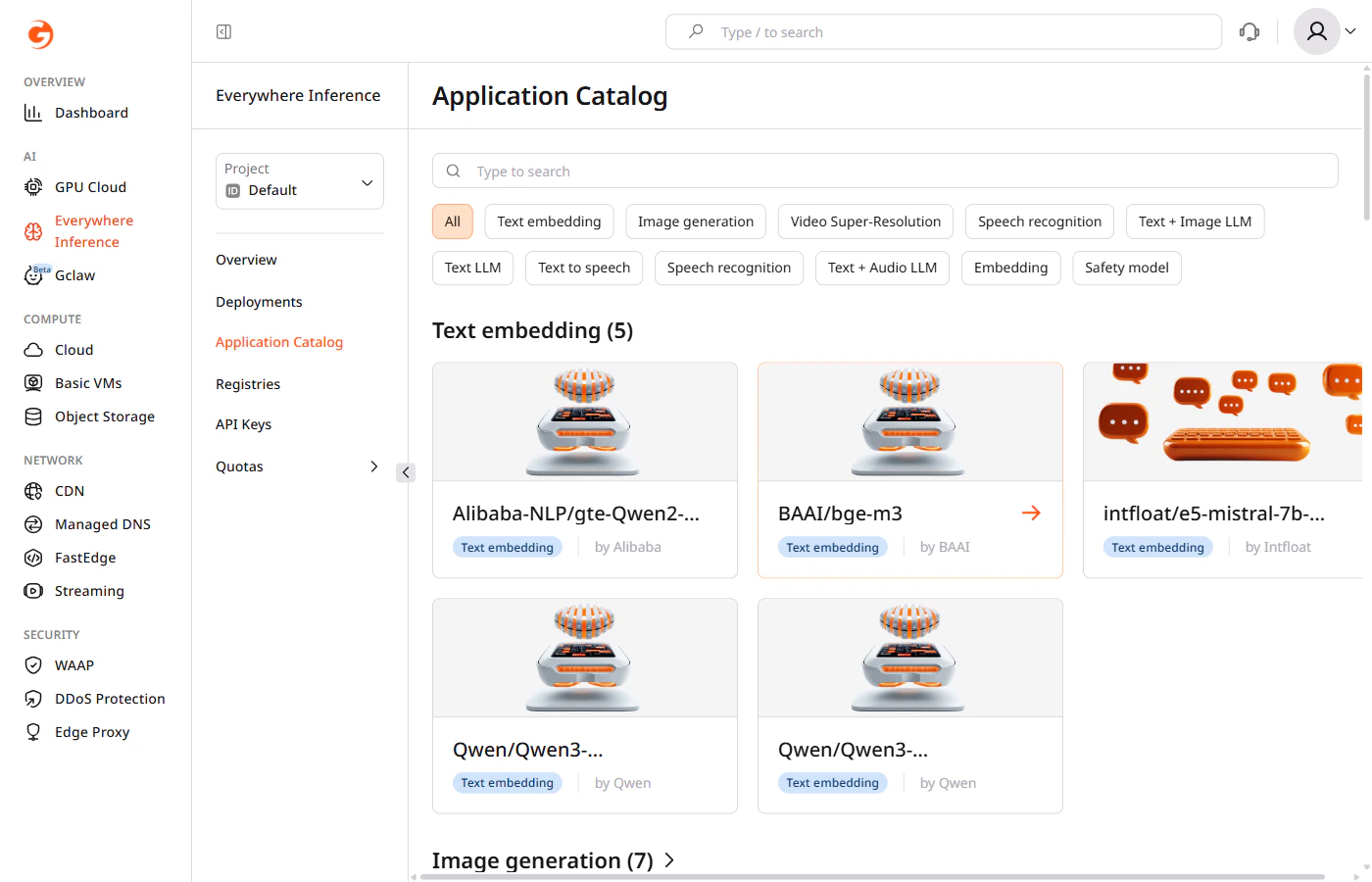
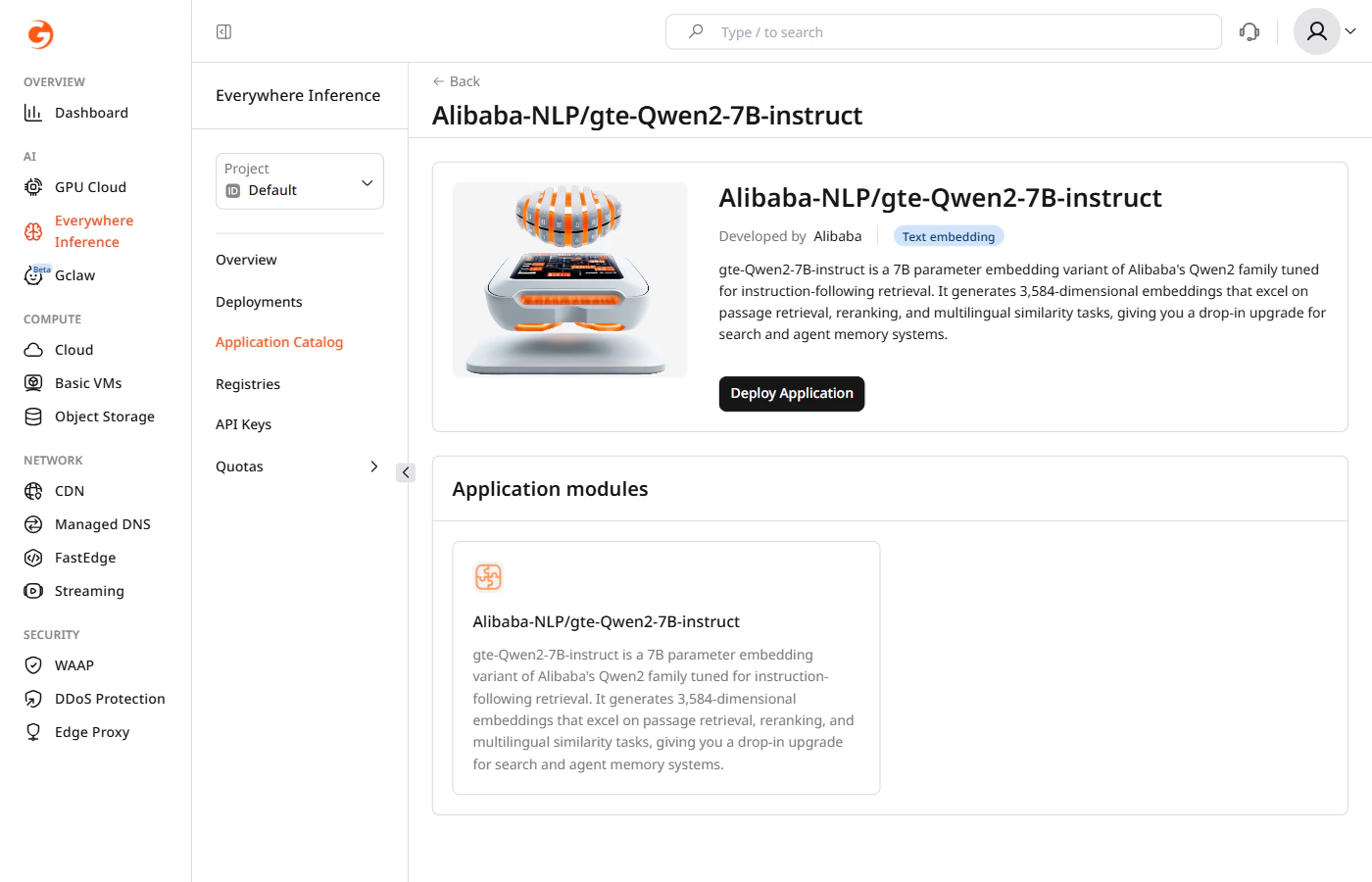
Deploy a model
Request a quota increase if the account quota is insufficient for the selected flavor.
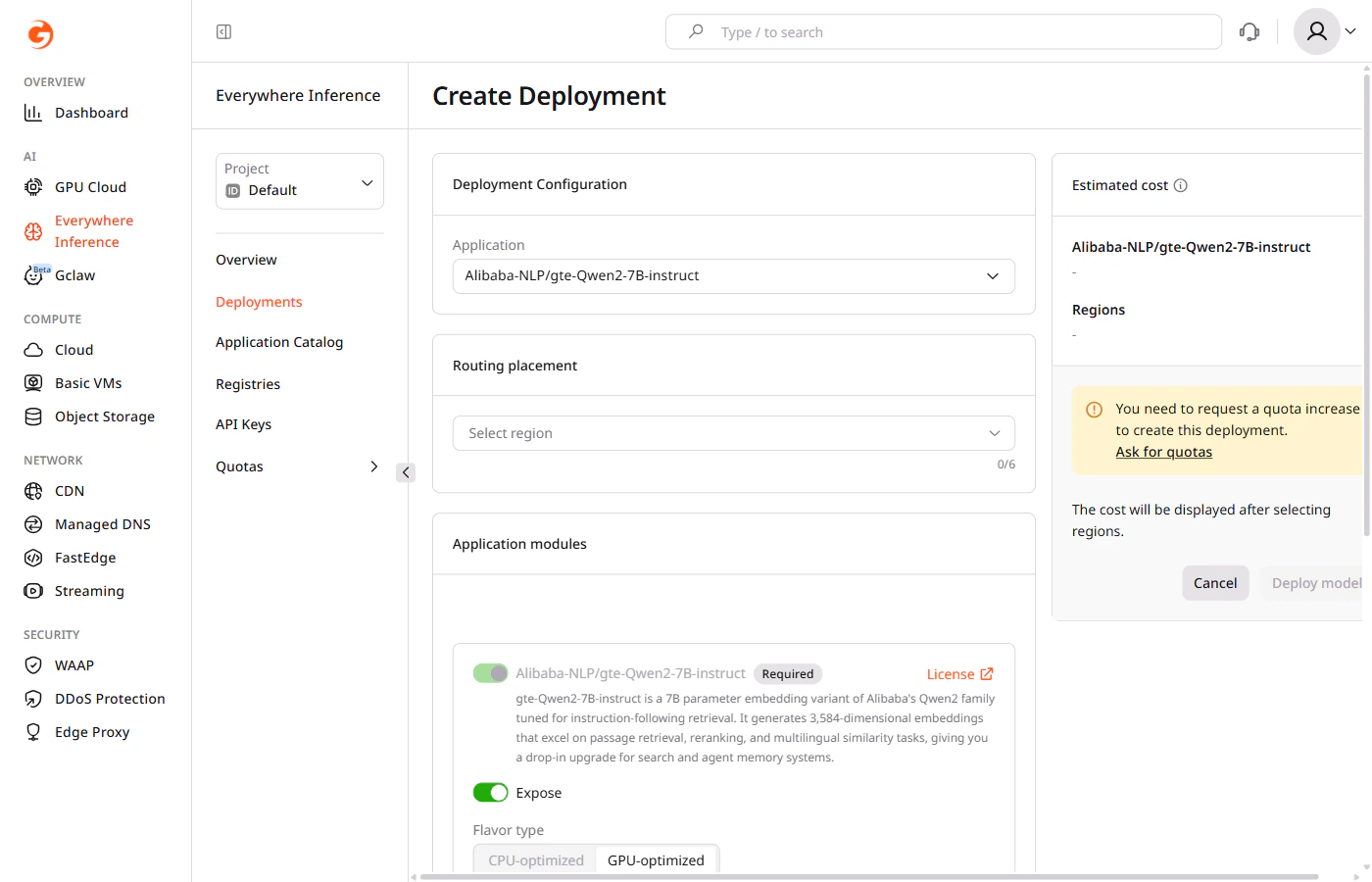
- Flavor type — select CPU-optimized or GPU-optimized depending on the model requirements.
- Flavor — select the hardware configuration from the dropdown.
- Minimum pods — the minimum number of pods to keep running during low-traffic periods.
- Maximum pods — the maximum number of pods Gcore provisions during peak traffic.
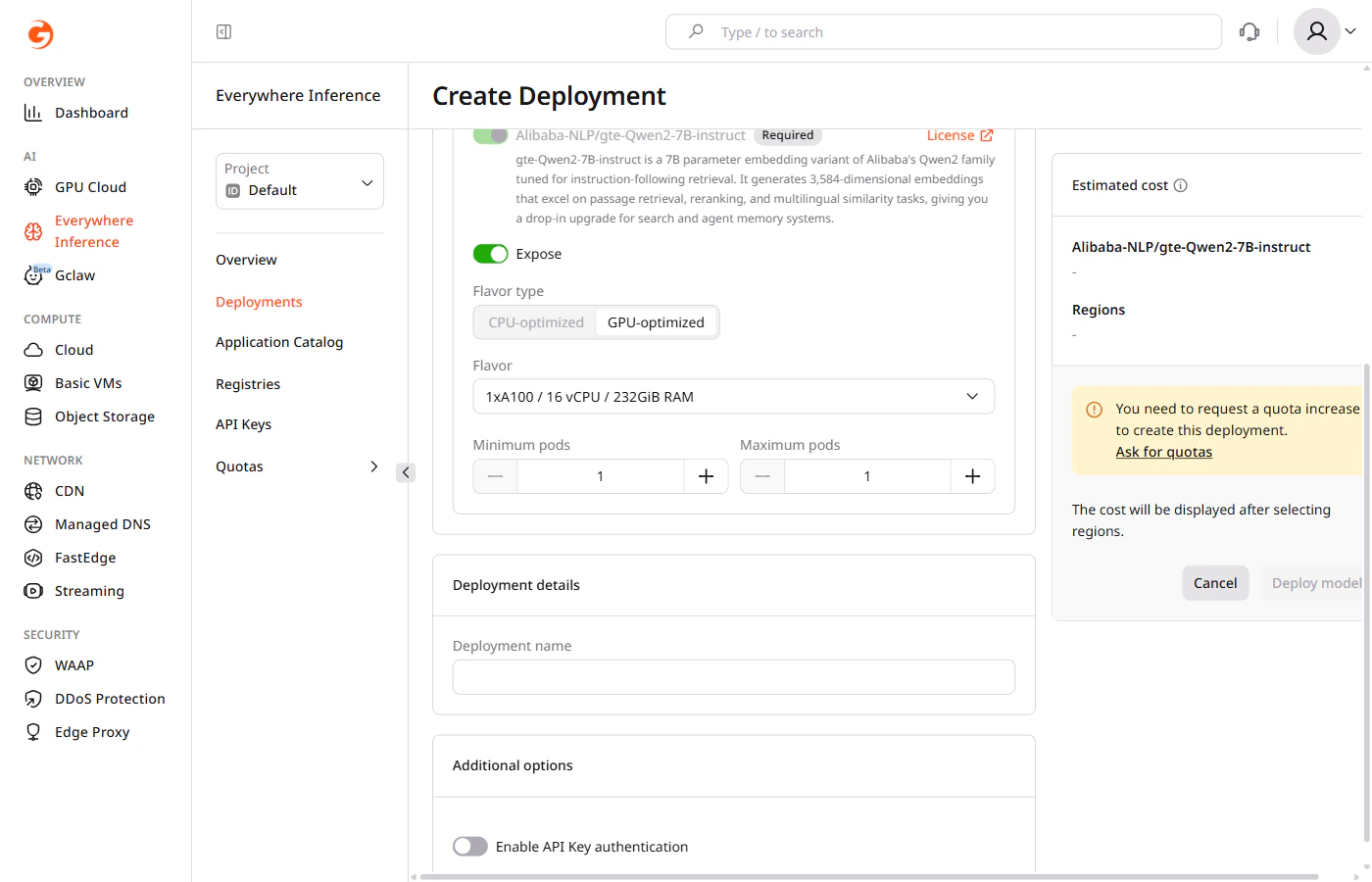
The main application module cannot be removed. The Expose toggle controls whether its endpoint is publicly accessible.
Available models
Text LLM (21 models)
Text LLM (21 models)
Text + Image LLM (3 models)
Text + Image LLM (3 models)
Text + Audio LLM (1 model)
Text + Audio LLM (1 model)
Text embedding (5 models)
Text embedding (5 models)
Embedding (2 models)
Embedding (2 models)
Image generation (7 models)
Image generation (7 models)
Speech recognition (4 models)
Speech recognition (4 models)
Text to speech (3 models)
Text to speech (3 models)
Video Super-Resolution (1 model)
Video Super-Resolution (1 model)
Safety model (3 models)
Safety model (3 models)